CO-OP Comms
Hear the person next to you.
Two people, two PCs, one room. CO-OP Comms plays one microphone in both headsets over a wired network, so you can talk mid-game without lifting an earcup. Only the host pays; the other PC joins free.
See it in 15 seconds
Same room. Both in headsets.
Closed headsets keep the game loud and the room out, including the person beside you. A voice call across the room works, but it takes two mics, two accounts and a trip over the internet.
How it works
The PC with the microphone hosts and the other joins. You both hear that mic in your headsets, alongside your game audio. Only hosting costs: the other PC joins with CO-OP Comms Client Only, a free download.
-
Open it on both PCs
Pick your headset on each. On the PC with the mic plugged in, pick the microphone too.
-
Host
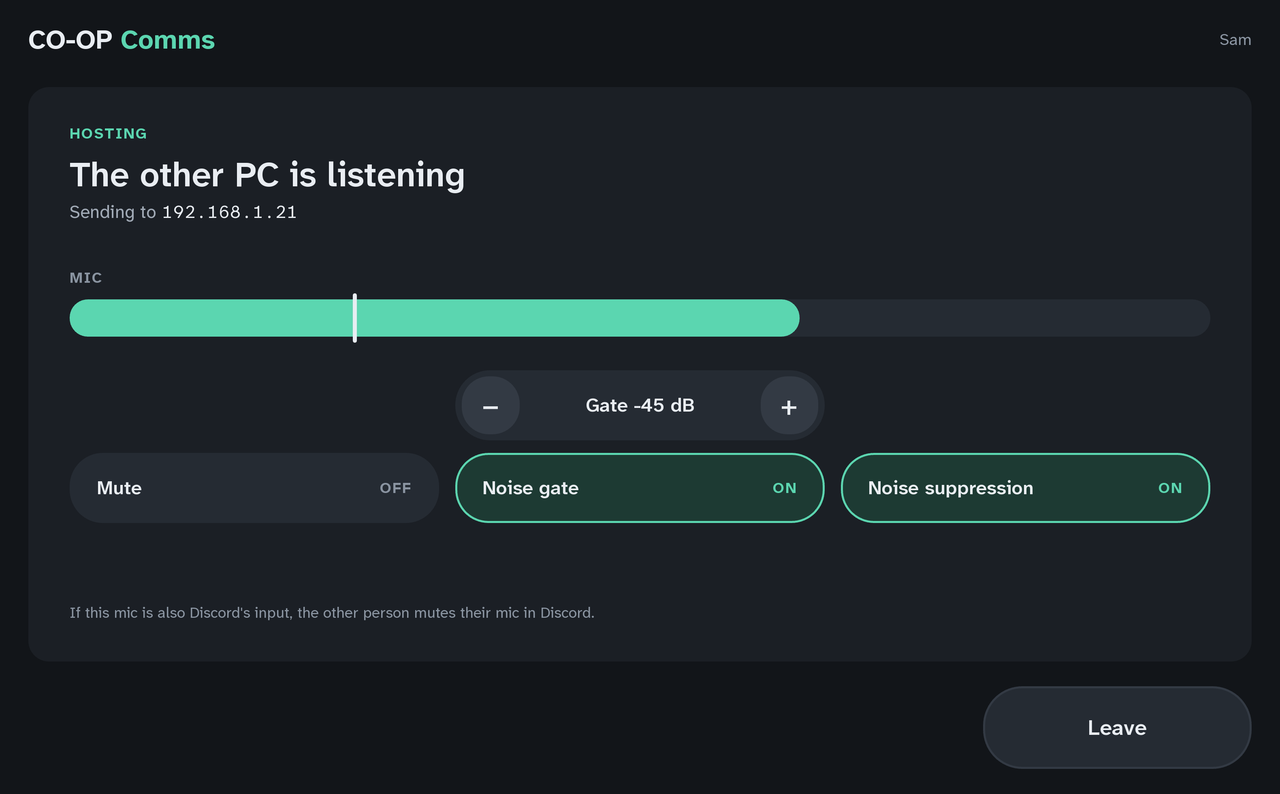
The PC with the mic presses Host. It needs no address.
-
Join
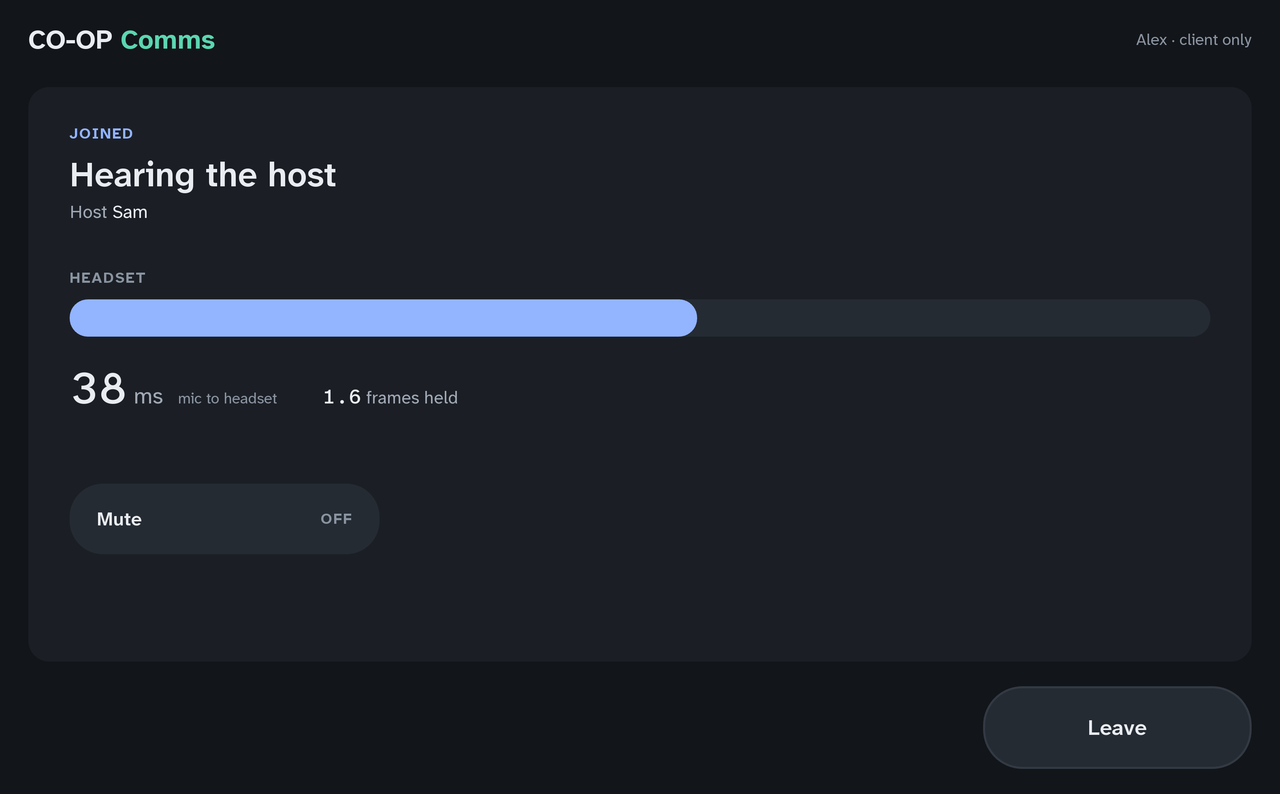
The other PC lists the host by name under Hosts on this network. Press Join beside it. If the list stays empty, type the address the host shows under This PC instead.
-
Talk
The host hears the mic straight away, and the guest hears it over the cable near instantly.
HOST PC
GUEST PC
What's in it
Everything below is built and working, and has been used between a Windows 11 PC and a Mac in testing.
One mic, both headsets
The host hears their own mic directly and the guest hears it over the network. Put the mic where it can hear you both.
Near instant
Your voice reaches the other headset near instantly, and faster still with noise suppression off. The guest's screen shows the delay as you talk.
Clean voice
Noise suppression is on from the start, and a noise gate keeps the line quiet between words without adding any delay. The host sets the gate's level with two buttons.
Shares your audio
Your headset and mic stay shared, so the game and Discord keep using them while CO-OP Comms runs.
Stays in the room
Audio goes to the other PC and nowhere else. No accounts or sign-up of its own, no telemetry, no analytics.
One-tap controls
A touch-friendly window with one-tap Join, Mute, Noise gate and Noise suppression.
What you need
Two PCs in one room, an Ethernet cable from each to the same router or switch, and a headset on each.
Requirements
- Two PCs
- Made for exactly two: one hosts, one joins. Only the host needs a microphone, and only the host buys CO-OP Comms; the other PC uses the free CO-OP Comms Client Only.
- System
- Windows 11; macOS 26 or later on an Apple silicon Mac; SteamOS 3, or a 64-bit Linux distribution that runs Steam (Ubuntu 22.04 or newer).
- Network
- Both PCs wired by Ethernet to the same router or switch. Wi-Fi and play over the internet aren't supported.
- Headsets
- One on each PC. Speakers would feed the sound back into the mic.
- Microphone
- Any microphone the host PC can use.
- Permissions
- The first time it runs, Windows asks to let CO-OP Comms through the firewall: allow private networks, and if Windows calls your home network Public, set it to Private. macOS asks for Microphone on the host and Local Network on both.
- Accounts
- None of its own.
Under the hood
- Sound
- Clear and uncompressed
- Network use
- Light on your home network
- Direction
- One way. The guest sends back only a small "still here" signal.
- Finding each other
- While hosting, the host tells your own network it's there, so the other PC can list it by name. That never leaves your network, but anyone on it can see the host, so use CO-OP Comms on your own home network, never a shared or public one.
- Noise suppression
- On from the start
- Noise gate
- On from the start. It opens the moment you speak and keeps the line quiet between words, at a level the host sets with two buttons.
Where it's at
CO-OP Comms is published by Iron Tower Press.
Now on Steam
Only hosting costs
Release is planned for Q4 2026. The store page is up now: wishlist it on Steam to hear when it comes out.
- Host and Join over a wired network
- Noise suppression, an adjustable noise gate and mute
- Live delay readout on the guest
- A touch-friendly window
- Used between a Windows 11 PC and a Mac in testing
$9.99 for the host PC. The other PC's copy, CO-OP Comms Client Only, is free: it joins, never times out and never asks for payment.
FAQ
Setup questions first, then the rest.
Check that the PC with the mic pressed Host and the other pressed Join beside it.
Then check the firewall. On Windows, allow private networks when the firewall asks. On macOS, allow Local Network. If you set firewall rules by hand, CO-OP Comms uses UDP ports 47800 and 47801 on both PCs.
The two PCs can't see each other on the network. On Windows, set the network to Private. On macOS, allow Local Network for CO-OP Comms. Some routers and switches block the announcement; then press Type the address instead and type the address the host shows under This PC.
On macOS, turn CO-OP Comms on under Privacy & Security, Microphone. On Windows, let desktop apps use the microphone. Otherwise, check the mic's own mute switch and level.
If the mic stops while you're hosting, CO-OP Comms ends the session and asks you to check that it's plugged in, then press Host again.
Leave Network on Automatic, which looks for the other PC on every connection, or pick that adapter in the Network list.
Wi-Fi adds delay and dropouts. CO-OP Comms is built for two PCs cabled to the same router or switch, and it doesn't work over Wi-Fi or the internet.
That's how it works. The host's mic plays in both headsets, so you both hear the same thing, your own voice included. It's also why you need headsets, not speakers.
No. Only the host's microphone is used, and the guest PC sends no audio. You're in the same room, so put the mic where it can hear you both.
No. Only hosting costs. The other PC uses CO-OP Comms Client Only, a free download that joins a host. It never times out and never asks for payment.
Yes. CO-OP Comms shares your audio devices, so your game and Discord keep using them.
If the host's mic is also Discord's input, the other person mutes their own mic in Discord, or your friends hear the room twice.
The host's Mute silences both headsets. The guest's Mute silences only the guest's.
No. CO-OP Comms is made for exactly two PCs: one host and one guest. A host that already has a guest shows as busy in the list and turns a second PC away.
No. Audio goes only to the other PC's address, over your own network. CO-OP Comms has no accounts or sign-in of its own, no telemetry and no analytics, and it saves nothing to disk.